
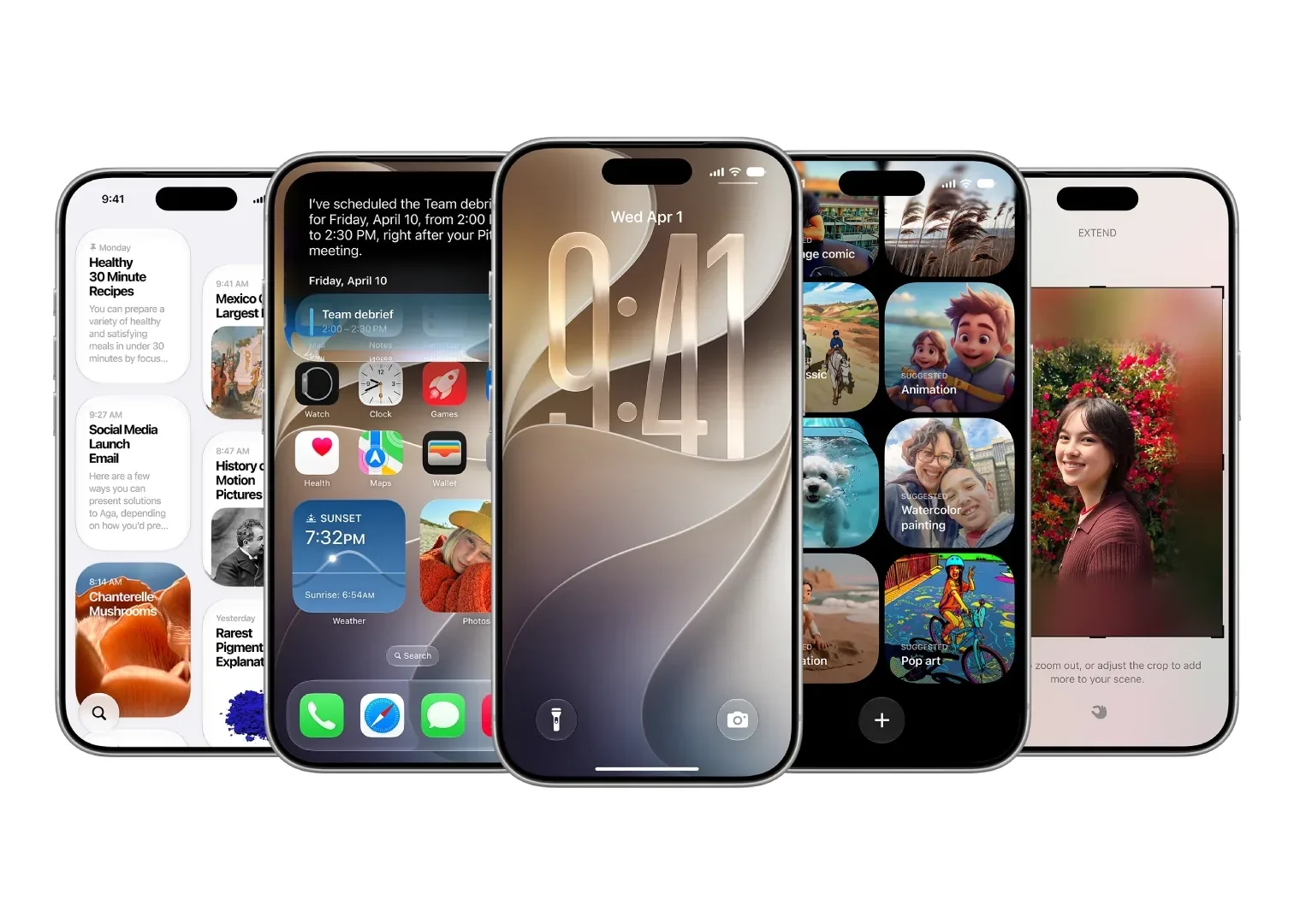
For years, Apple's Shortcuts app has been one of the most powerful tools on the iPhone. Yet for many users, it remained largely untouched because creating automations often felt too technical and intimidating.
Building shortcuts traditionally required manually selecting actions, setting conditions, and linking multiple steps together. While powerful, the process often resembled coding, making it difficult for everyday users to take advantage of the feature.
That changes with iOS 27.
Apple has introduced a new Apple Intelligence feature called Describe a Shortcut, allowing users to create automations simply by describing what they want their iPhone to do. Instead of manually building workflows, users can type a natural-language request, and Apple Intelligence generates the shortcut automatically.
The feature makes automation more accessible than ever and could transform how people use their iPhones every day.
What Is Describe a Shortcut?
Describe a Shortcut is an AI-powered feature built into the Shortcuts app. It uses Apple Intelligence to interpret your request and automatically create the actions needed to perform the task.
For example, instead of manually configuring several settings, you could simply type:
"At 10:00 PM, turn on Do Not Disturb, reduce screen brightness to 15%, and enable Dark Mode."
Apple Intelligence will analyze the request and generate the complete shortcut within seconds.
The feature supports a wide range of automations, from productivity tools to everyday convenience tasks.
Requirements
Before using Apple Intelligence to create shortcuts, you'll need:
An iPhone 15 Pro, iPhone 15 Pro Max, or a newer supported model.
The iOS 27 beta installed.
Apple Intelligence enabled on your device.
How to Install the iOS 27 Beta
If you want to try the feature before the public release, follow these steps:
Step 1: Back Up Your iPhone
Before installing any beta software, create a backup of your device.
Open Settings.
Tap your Apple ID profile at the top.
Select iCloud.
Tap iCloud Backup.
Select Back Up Now.
Step 2: Join Apple's Developer Program
If you've never installed an Apple beta before:
Sign up for a free Apple Developer account.
Log in using your Apple ID.
Ensure your device is eligible for Apple Intelligence features.
Users who have previously participated in Apple beta programs can skip this step.
Step 3: Download the iOS 27 Developer Beta
Open Settings.
Tap General.
Select Software Update.
Tap Beta Updates.
Choose iOS 27 Developer Beta.
Download and install the update.
How to Create Custom Shortcuts with Apple Intelligence
Once iOS 27 is installed, creating shortcuts becomes remarkably simple.
Step 1: Open the Shortcuts App
Launch the Shortcuts app on your iPhone.
Step 2: Create a New Shortcut
Tap the New Shortcut button.
Instead of the traditional workflow editor, you'll now see a text box asking what you'd like the shortcut to do.
Step 3: Describe Your Automation
Type a natural-language instruction explaining exactly what you want.
Examples include:
"When I arrive at work, turn on Focus Mode and open Microsoft Teams."
"Every morning at 7 AM, read today's weather and open my calendar."
"When I leave work, text my partner my estimated arrival time."
"At bedtime, turn on Do Not Disturb, enable Dark Mode, and lower screen brightness."
Step 4: Generate the Shortcut
Tap the arrow button.
Apple Intelligence will analyze your request and automatically build the required workflow.
Step 5: Review and Save
Review the generated shortcut to ensure everything is configured correctly.
If you're satisfied, save the shortcut and begin using it immediately.
What Can You Create?
The possibilities extend far beyond simple settings adjustments.
Users can create shortcuts that:
Launch multiple apps simultaneously.
Send automated messages.
Manage Focus Modes.
Control smart home devices.
Play music or podcasts.
Adjust device settings based on time or location.
Create personalized productivity routines.
The more detailed your request, the better Apple Intelligence can understand and execute your desired automation.
A Major Upgrade for Everyday Users
Apple's Shortcuts app has always been powerful, but it often felt inaccessible to non-technical users. By allowing people to describe automations in plain language, Apple Intelligence removes much of the complexity that previously discouraged adoption.
While the feature is still in beta and may occasionally require adjustments, it represents one of the most practical uses of AI in iOS 27. Instead of simply answering questions, Apple Intelligence actively helps users automate repetitive tasks and personalize their devices with minimal effort.
For many iPhone owners, Describe a Shortcut may become one of the most useful Apple Intelligence features arriving with iOS 27.